

Desde o Univer Experience, todos estão aguardando este momento e ele chegou. O Univer Vídeo está de cara nova, totalmente repaginado, para melhorar a forma como você assiste aos conteúdos de qualidade.
Com grandes estreias chegando a todo momento, é claro que daríamos aquela atenção especial para a tecnologia e às sugestões dos nossos assinantes foram ouvidas com sucesso.
Como tudo que é novo, podem surgir dúvidas e dificuldades para manusear o novo Univer Vídeo. Então, para te ajudar, aqui vai um guia com as maiores mudanças que ocorreram e como atualizar seu aplicativo.
Veja este vídeo sobre o novo Univer Vídeo:

Com o novo Univer Vídeo você tem:
- A modalidade de “continue assistindo”;
- Séries bem categorizadas;
- Opção “minha lista”;
- Perfis personalizados;
- Controle parental.
CONTINUE ASSISTINDO
Chega de ter que ficar anotando onde parou. Com a atualização, você só precisará ir até a aba “continue assistindo” e apertar no conteúdo, que ele te dará a opção de continuidade.
Vale lembrar que você terá as opções de continuar assistindo ou voltar do início, no Univer Vídeo é você quem manda.
CATEGORIZAÇÃO DAS SÉRIES
Sabe quando você ia pesquisar a série e as temporadas estavam separadas? No novo aplicativo, isso acabou. Agora você aperta na série e dentro da aba dela estarão todas as temporadas, para você não precisar ficar procurando novamente.
MINHA LISTA
Quando você vir um filme, série ou reunião e quiser lembrar para assistir depois, basta clicar no botão “minha lista”, para deixar guardado e assistir quando quiser.
PERFIS PERSONALIZADOS
Muitos usuários se incomodavam quando estavam assistindo e o parceiro de Univer Vídeo ficava mexendo também. Por isso, a atualização chegou com perfis individuais.
Você pode compartilhar o Univer Vídeo com o parente ou amigo e cada um ter a sua aba específica. E o melhor? Com direito a personalização com a foto do seu personagem favorito.
CONTROLE PARENTAL
O Univer Vídeo já tem uma grande preocupação com o que você assiste enquanto as crianças estão na sala, então temos um time de rígida curadoria para que os valores e decência sejam priorizados.
Com a nova atualização, se houver algum conteúdo que os pequenos ainda não têm maturidade para assistir, a opção de senha estará disponível, para auxiliar na proteção da criança.
PARA SMART TV
Se a sua TV é compatível para a atualização, você irá na loja de aplicativos da sua Smart TV, pesquisar por “Univer Vídeo” e fazer o download.
Infelizmente, as TVs das marcas LG e Samsung ainda não possuem o aplicativo do Univer. Mas fique tranquilo, será apenas por um período e logo teremos um aplicativo novo e moderno para você usufruir das novas funcionalidades em sua TV.
Após o aplicativo já estar instalado, você pode abrir, fazer o login da sua conta e aproveitar o conteúdo que faz bem.
NA APPLE TV
Se você tem a Apple TV e gostaria de assistir ao Univer Vídeo por ela, você fará um passo a passo muito parecido com a Smart TV.
- Abra a loja de aplicativos App Store;
- Procure “Univer Vídeo” na busca do aplicativo;
- Aperte o botão “Obter” para fazer download;
- Após instalado, basta você abrir e já terá o acesso.
NO FIRE TV STICK AMAZON
Essa também é uma recente novidade no Univer Vídeo. Agora, se você não tem Smart TV, mas usa o Fire TV Stick Amazon.
É importante ter em mente que, para baixar aplicativos no Fire TV Stick Amazon, você precisa ter registrado o seu CPF.
Para registrar, basta:
- Ir em “sua conta”;
- Selecione “configurações de login e segurança”;
- Inclua seu CPF.
Com o CPF incluso, você poderá baixar o aplicativo do Univer Vídeo com os três passos simples:
- Abra a Amazon store, dentro do dispositivo.
- Busque por “Univer Vídeo” e faça o download.
- Com o aplicativo instalado, você já pode aproveitar o Univer Vídeo.
UNIVER VÍDEO NA ANDROID TV
Se você utiliza o Android TV e quer baixar o aplicativo, siga esse passo a passo muito fácil, que você irá conseguir baixar rapidamente.
- Dentro do Android TV, procure nos aplicativos pela Play Store;
- Na Play Store, você irá na lupa de busca e pesquisar por “Univer Vídeo”;
- Após encontrar, selecione para fazer o download;
- Após instalar, você irá em “abrir” e pronto.
EU NÃO TENHO UMA CONTA NO UNIVER VÍDEO. COMO FAZER?
Para fazer sua assinatura no Univer Vídeo e ter acesso as mais de 10 mil horas de filmes, séries, novelas, podcasts, palestras e reuniões, clique aqui.
O primeiro passo para criar o cadastro é colocar o e-mail que você utiliza e a senha que irá usar para acessar. No segundo passo você colocar seu nome e sobrenome.
No terceiro passo você consegue visualizar as opções de planos de assinatura, e escolher a que fizer mais sentido para você e sua família.
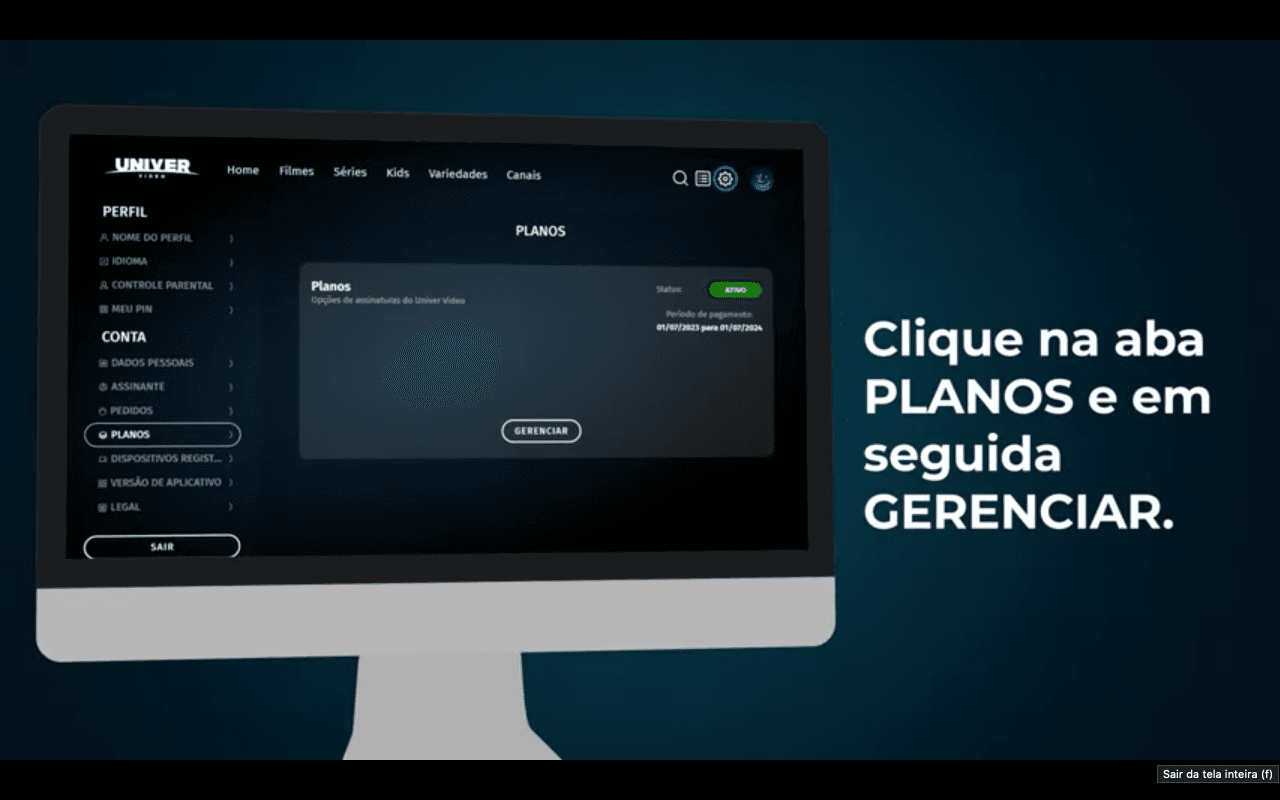
Após escolher o plano, irá para o quarto passo, que é escolher a forma de pagamento e realizá-lo. Atualmente temos a função de pagamento via cartão de crédito e boleto.
Caso sua escolha seja o cartão de crédito, você colocará os dados do seu cartão ali mesmo nas lacunas que o aplicativo te entrega.
Se a sua opção for pelo boleto, irá escrever os dados solicitados e poderá gerar o código do boleto para pagar virtualmente ou o boleto para imprimir e pagar fisicamente.
Com o pagamento efetuado, você será direcionado para a quinta e última tela, significando que o plano já está ativo e você já pode assistir.
AINDA COM DÚVIDAS?
Após esse guia prático de como usar o aplicativo do Univer Vídeo nas TV’s, você ainda ficou com alguma dúvida?
Seja sobre isso ou qualquer outra questão, você tem acesso direto a nossa equipe de atendimento ao cliente, pelo WhatsApp (11) 5555-1383.
Estamos à sua disposição!