
Você já precisou correr para pegar o controle remoto e pular uma cena imprópria enquanto assistia a algo com os seus filhos? Ou sentiu receio de deixar o tablet nas mãos das crianças sem saber o que viria a seguir na tela?
Proteger o que os pequenos assistem se tornou uma das principais preocupações das famílias. Por isso, o novo Univer Vídeo reforçou um dos seus compromissos centrais: ser um streaming seguro para crianças e para toda a família. Entre as novidades da nova versão estão o Modo Kids reformulado e o controle parental com PIN. A seguir, você entende como cada recurso funciona e como ativá-los em poucos minutos.
O que é o Modo Kids do Univer Vídeo
O Modo Kids é um ambiente dedicado ao público infantil dentro da sua conta. Ele reúne desenhos bíblicos, séries educativas e filmes que ensinam princípios morais e cristãos, separados do catálogo geral da plataforma.
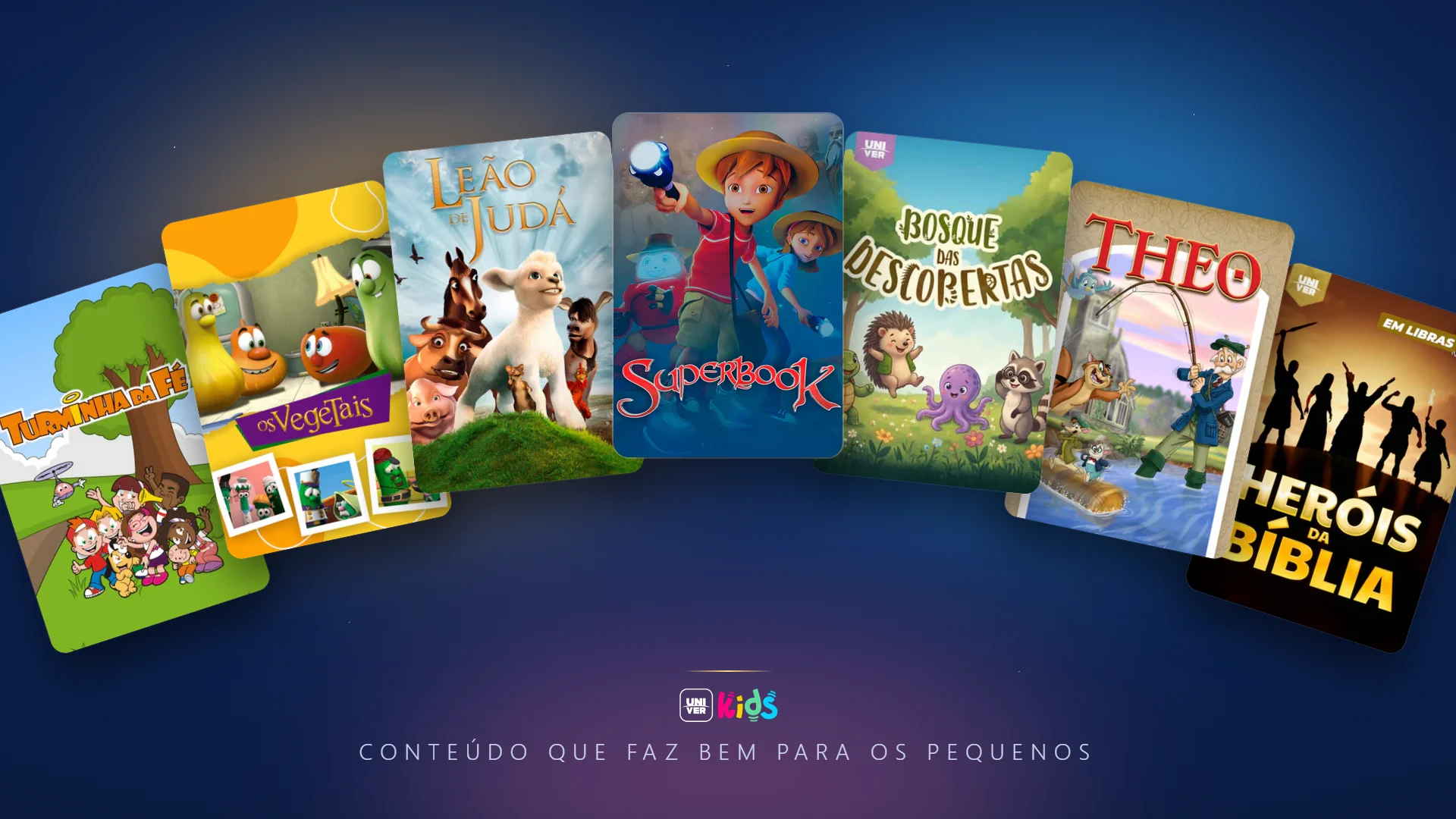
Ao entrar no Perfil Kids, a interface muda para um visual intuitivo e colorido, pensado para que a criança navegue com autonomia. Ali estão títulos como Superbook, Os VegeTais, Leão de Judá, Bosque das Descobertas e Turminha da Fé.
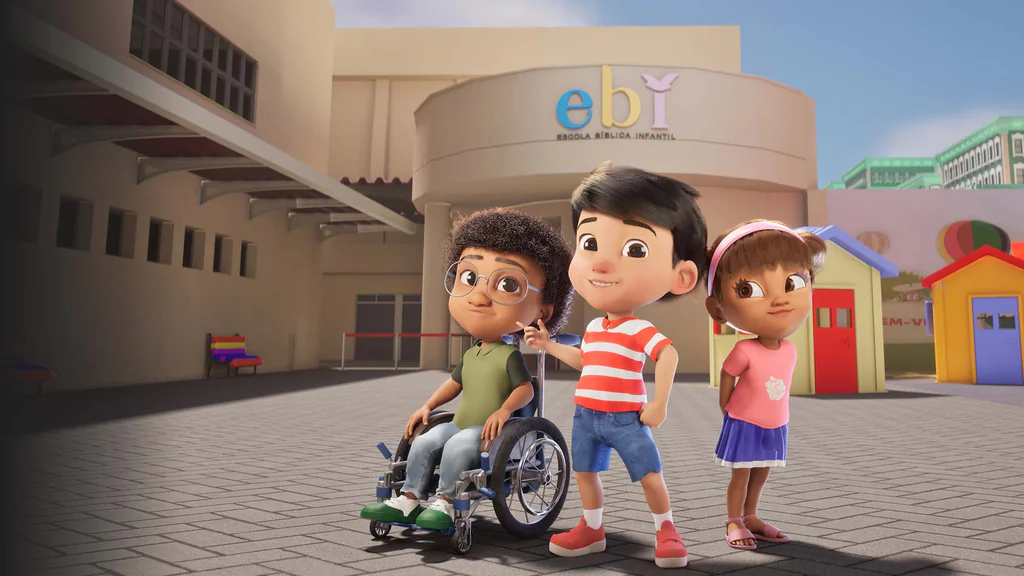
O que a sua família encontra no catálogo infantil
- Desenhos e animações bíblicas: histórias clássicas das Escrituras, adaptadas com linguagem lúdica e recursos visuais modernos.
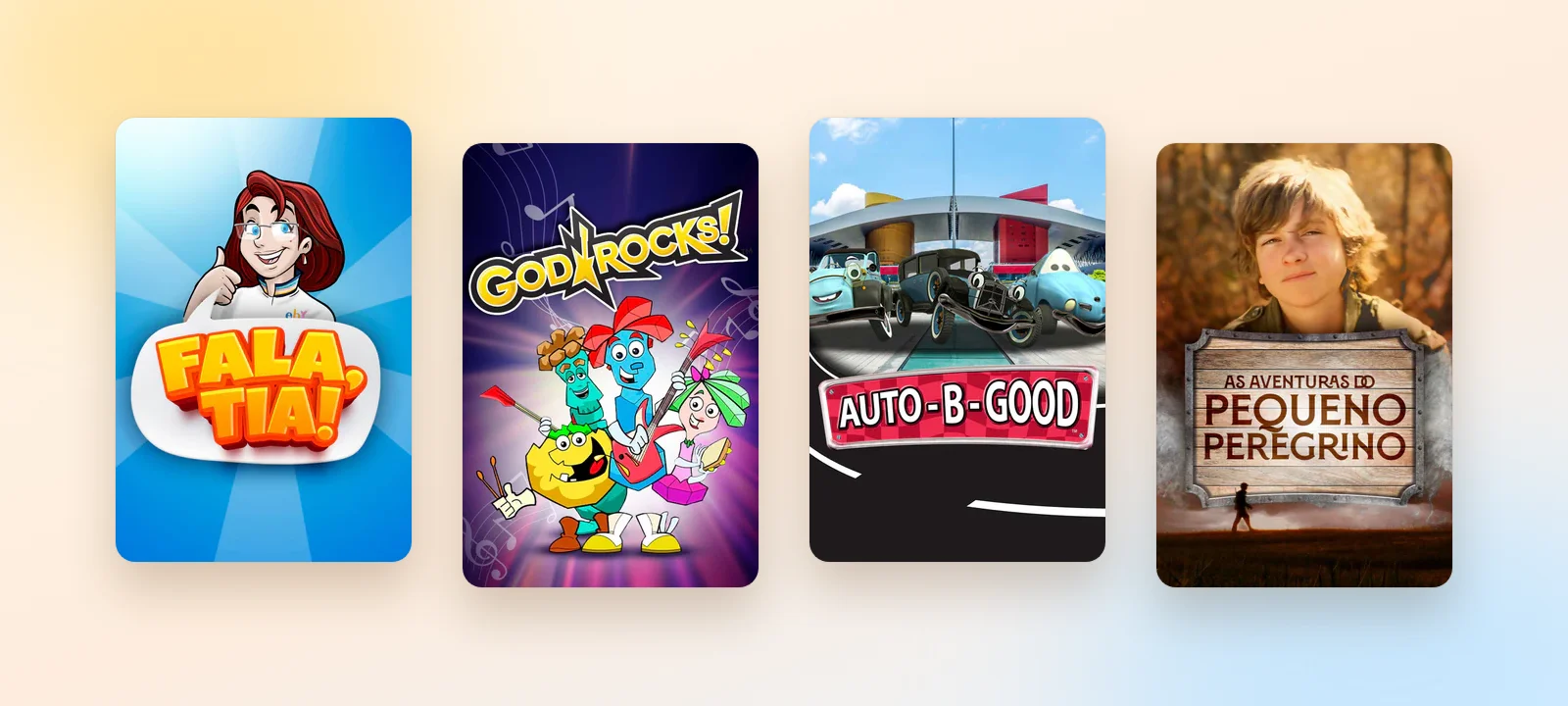
- Formação de caráter e valores: produções que ensinam sobre obediência aos pais, verdade, amizade, fé e respeito.
- Um ambiente sem distrações comerciais: no Perfil Kids, a criança não encontra propagandas de brinquedos, conteúdos comerciais nem vídeos com pegadinhas de duplo sentido.
Como funciona o controle parental com PIN
Para evitar que a criança saia do Modo Kids por engano e chegue ao catálogo geral, com séries e novelas pensadas para adultos, o novo Univer Vídeo oferece o PIN parental. Ele é um código numérico de 4 dígitos, criado pelo responsável.
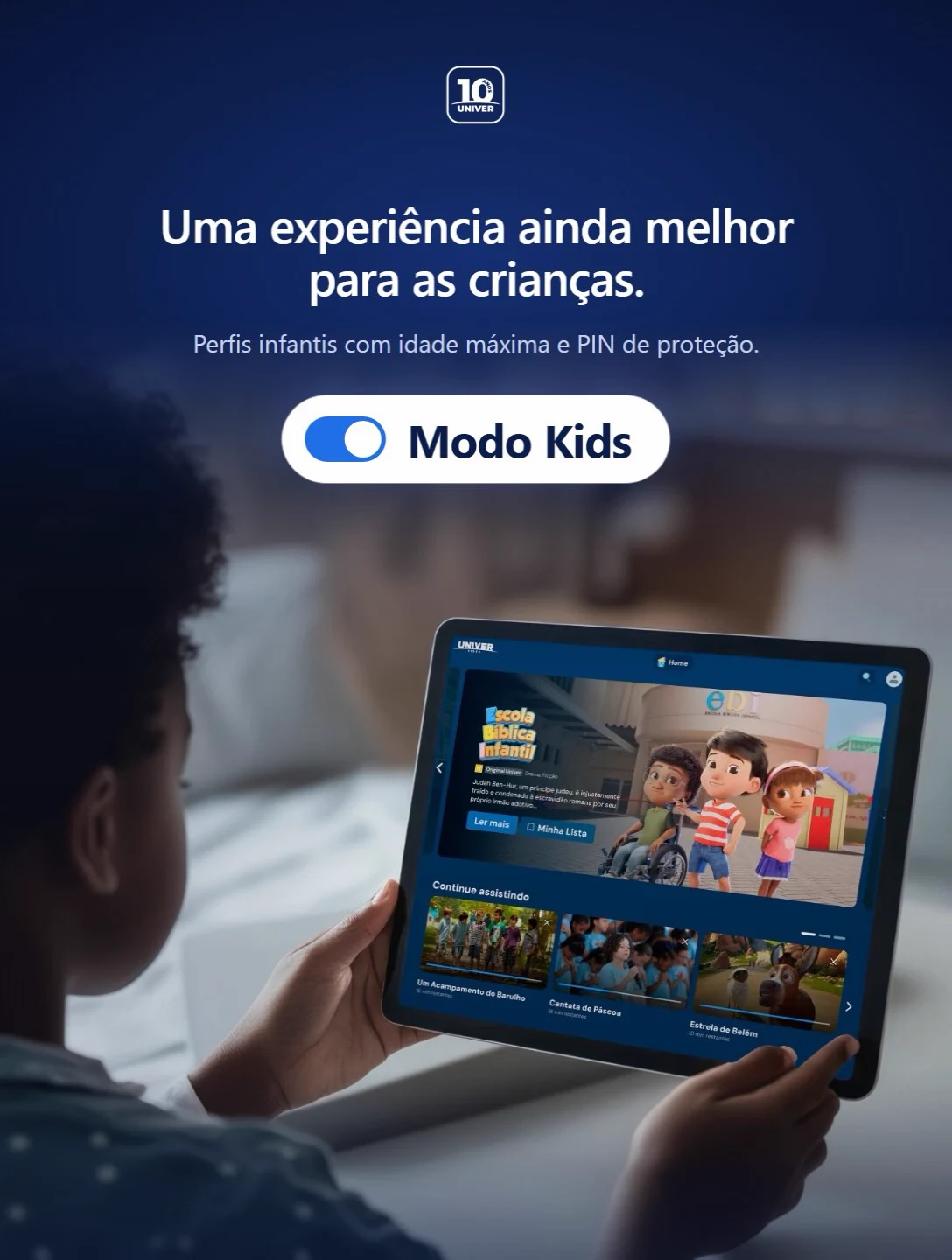
Com o PIN ativado, a criança navega e dá o play apenas dentro do espaço infantil. Para abrir um perfil protegido ou mexer nas configurações, é preciso digitar o código. Além disso, cada perfil pode ter uma classificação etária máxima, para que a família decida o que cada um pode assistir.
Assim, você tem mais tranquilidade para deixar o celular, o tablet ou a Smart TV com os pequenos. A tecnologia ajuda, mas a companhia dos pais continua sendo a melhor proteção: vale acompanhar de perto o que as crianças assistem.
Por que escolher um streaming focado na família
Nem todo conteúdo infantil disponível por aí conversa com os valores que você ensina em casa. No Univer Vídeo, cada título passa por uma curadoria que prioriza princípios cristãos e o bem-estar das crianças. O resultado é entretenimento que edifica, sem constrangimentos na sala.
Se você quer entender melhor esse cuidado, leia também por que o conteúdo importa tanto quanto o tempo de tela.
Passo a passo: como ativar o Modo Kids e o PIN no novo app
- Atualize o aplicativo: confira se o app do Univer Vídeo está atualizado na loja oficial do seu aparelho (Google Play, App Store ou loja de aplicativos da Smart TV). No computador, acesse univervideo.com.
- Crie o Perfil Kids: na tela "Quem está assistindo?", toque em "+ Criar perfil", escolha um avatar e digite o nome da criança.
- Ative o modo infantil: ainda na criação do perfil, ative o modo infantil e, se quiser, defina a classificação etária máxima.
- Proteja os perfis dos adultos: nos perfis que a criança não deve acessar, ative a proteção por PIN e crie um código de 4 dígitos.
- Finalize: toque em "Criar" para salvar. Pronto: a navegação segura está ativada.
Ficou com alguma dúvida? A Central de Ajuda tem um artigo sobre o Univer Kids e o conteúdo para crianças, e você pode conhecer as demais novidades do novo Univer Vídeo.
Perguntas frequentes sobre o Modo Kids
O que é o Perfil Kids do Univer Vídeo? É um perfil infantil dentro da sua conta, com interface própria e acesso apenas a conteúdos selecionados para crianças, como desenhos bíblicos e séries educativas.
Para que serve o PIN parental? O PIN é um código de 4 dígitos criado pelo responsável. Ele impede que a criança abra perfis protegidos ou altere configurações sem autorização.
Posso escolher o que cada perfil assiste? Sim. Ao criar um perfil, você pode ativar o modo infantil e definir a classificação etária máxima de conteúdo.
Proteja o que entra na sua casa
Cuidar do conteúdo que forma a imaginação e os princípios dos seus filhos é um compromisso diário. Com o novo Univer Vídeo, tecnologia e valores caminham juntos para que no seu lar só entre conteúdo que faz bem. Atualize o app ou acesse univervideo.com para conhecer o novo Modo Kids e, para liberar o catálogo completo, veja os planos disponíveis. Conteúdo Que Faz Bem.